Understanding the difference between the mobile app and the admin dashboard login is essential to properly using the SWAPP Custom Church APP. Logging in to The Soulwinning App (SWAPP) is straightforward whether you’re on your phone or computer, but some users encounter challenges—confusion between email and phone number logins, admin access issues, or OTP delays. This guide walks through logging in on both platforms, clarifies password usage, recommends the best browser, and provides fixes for one-time password issues.
Logging In on the SWAPP Custom Church Mobile App (Phone)
The SWAPP mobile app for Android and iOS makes it easy to manage outreach on the go. Follow these steps:
1. Open the SWAPP App
Launch the SWAPP app. Download it from the App Store or Google Play if needed. Use this link to download: Download SWAPP.
2. Choose Your Login Method
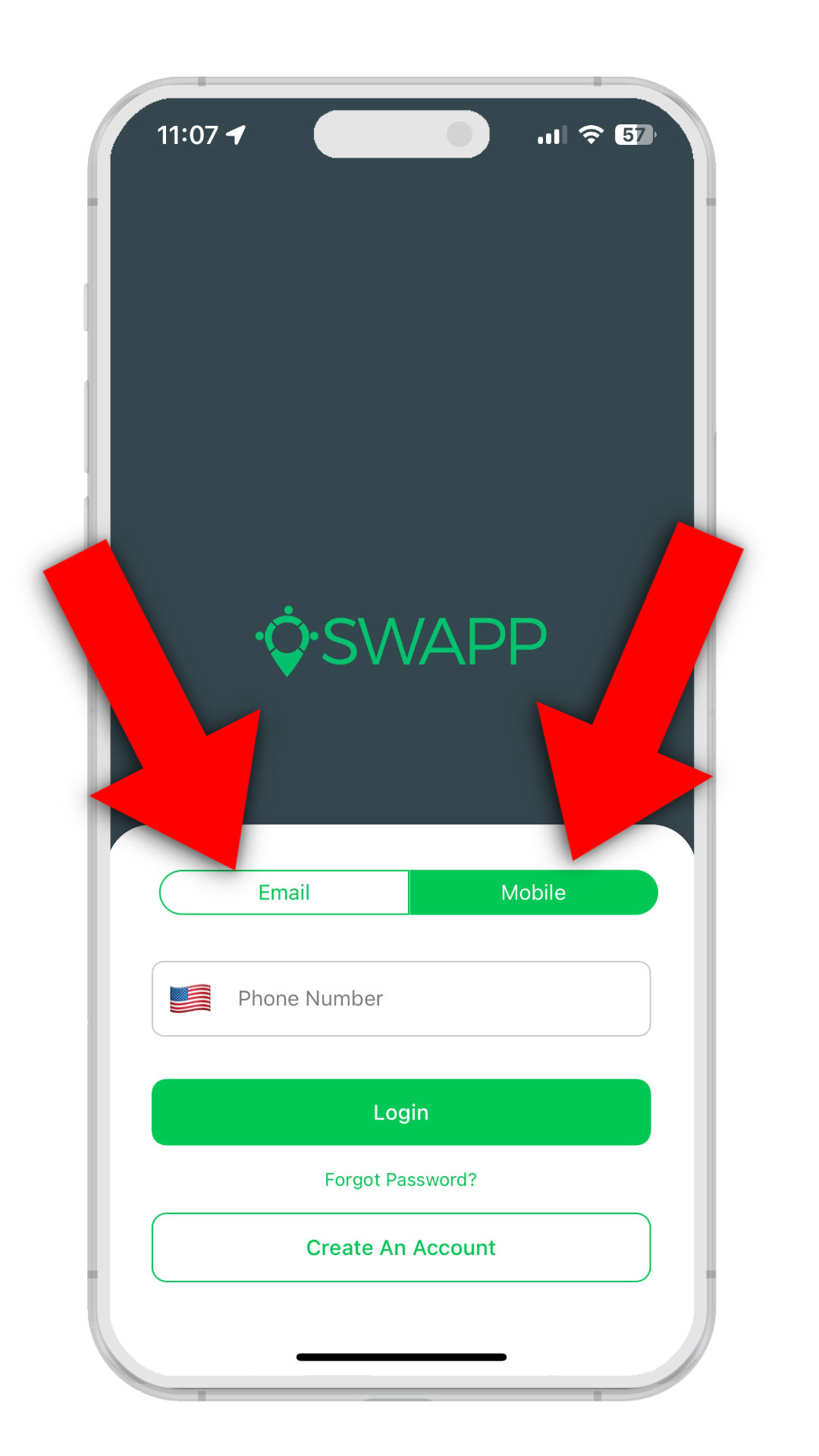
On the login screen you have two options:
- Email Login: Enter the email address you used during signup.
- Phone Number Login (Recommended): Enter your phone number to receive a one‑time password (OTP) via SMS.
3. Enter Your Credentials
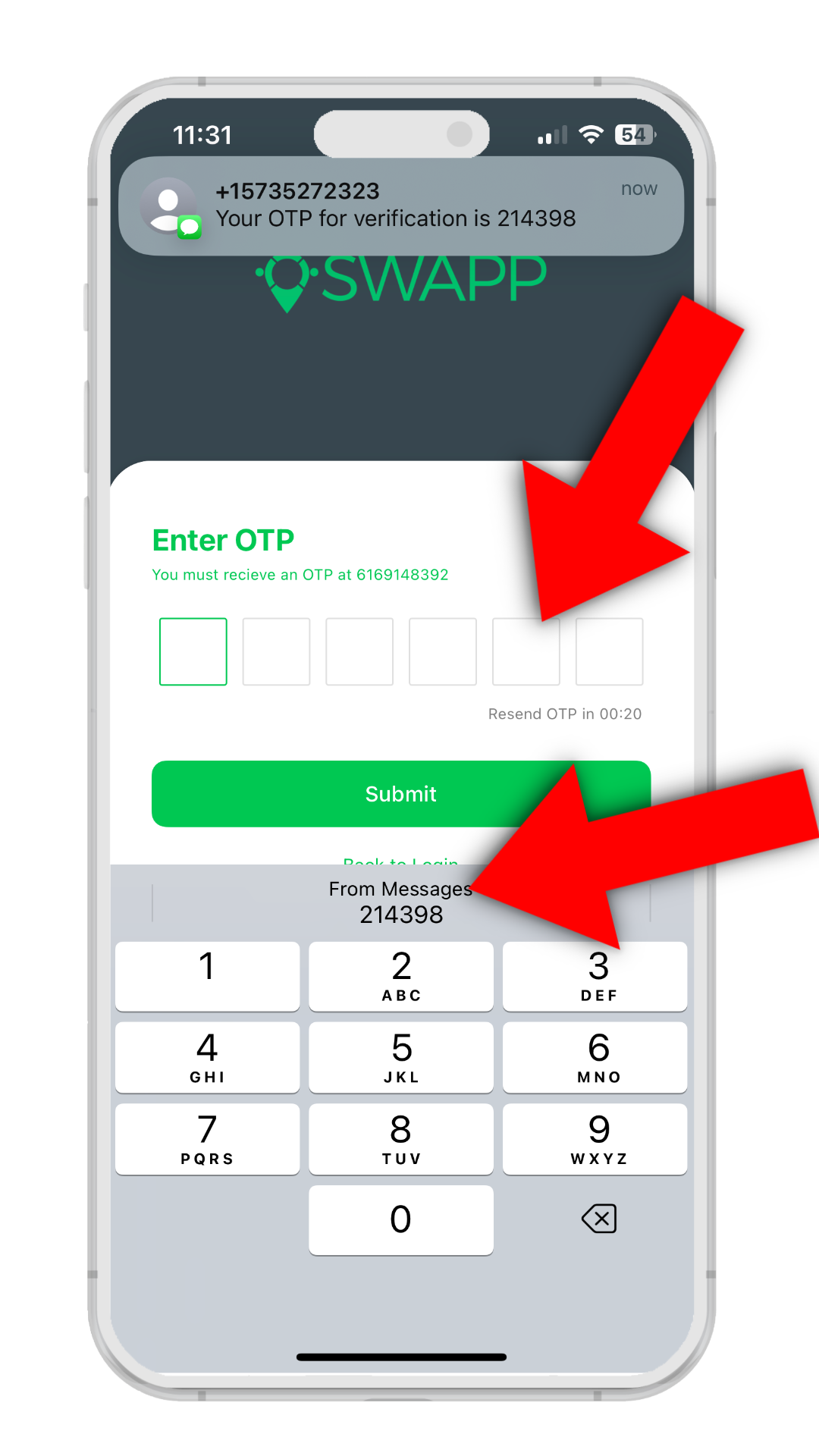
Email: Use the email and password you set during signup (not the OTP).
Phone Number: Request an OTP, then enter the code sent via SMS.
4. Log In
To finish logging in you need to search for and select your church. If your church hasn’t been registered yet, the login cannot be completed until it is. Once selected, you can view maps, manage prospects, and track outreach activities.
Logging In on the Web Version (Computer)
The web dashboard offers a larger screen for mapping and administration tasks. Follow these steps:
1. Visit the SWAPP Website
Open your browser and go to thesoulwinningapp.com.
2. Click on Log In
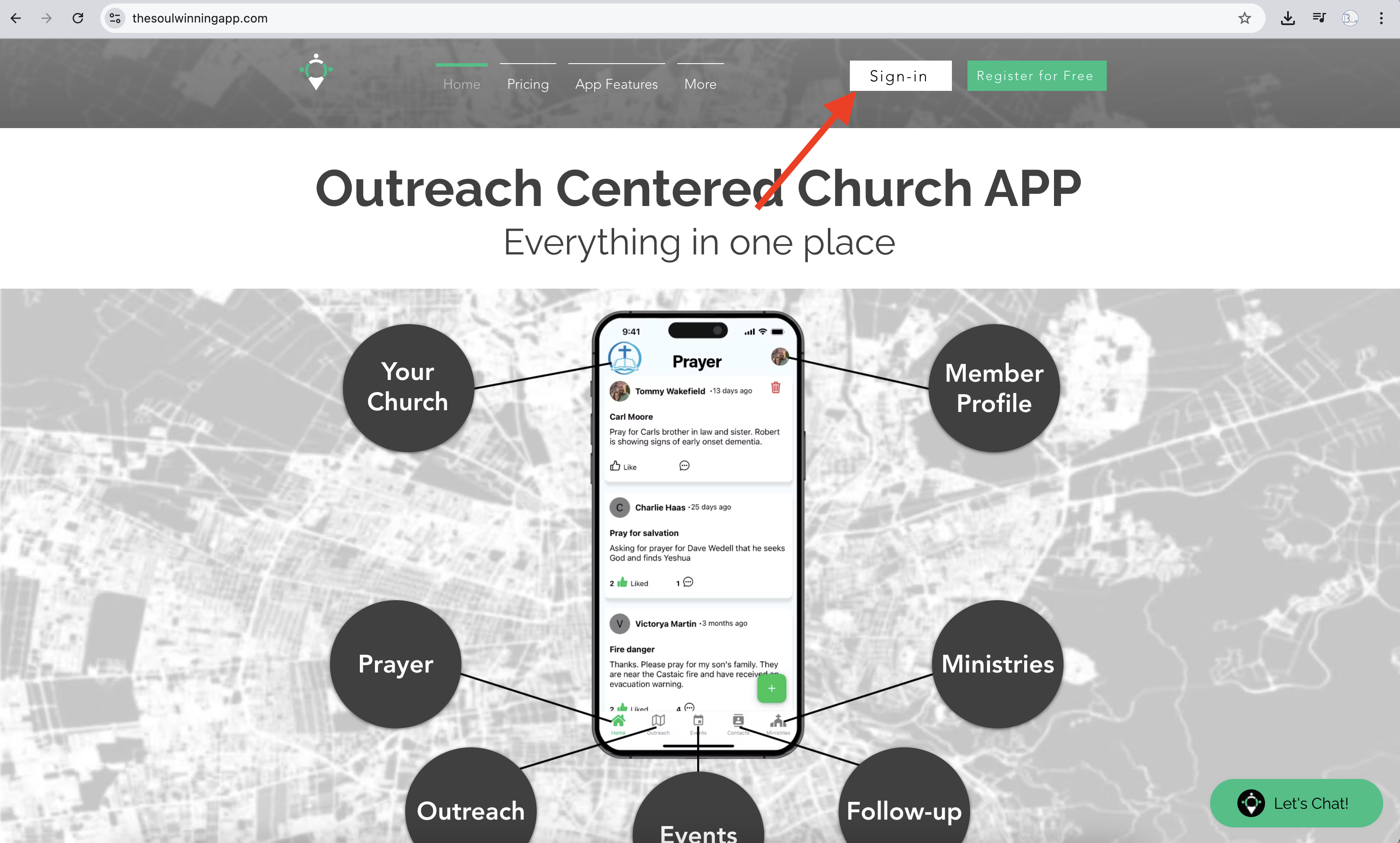
Locate the Log In button (top‑right of the homepage) and click it.
3. Enter Your Email and Password
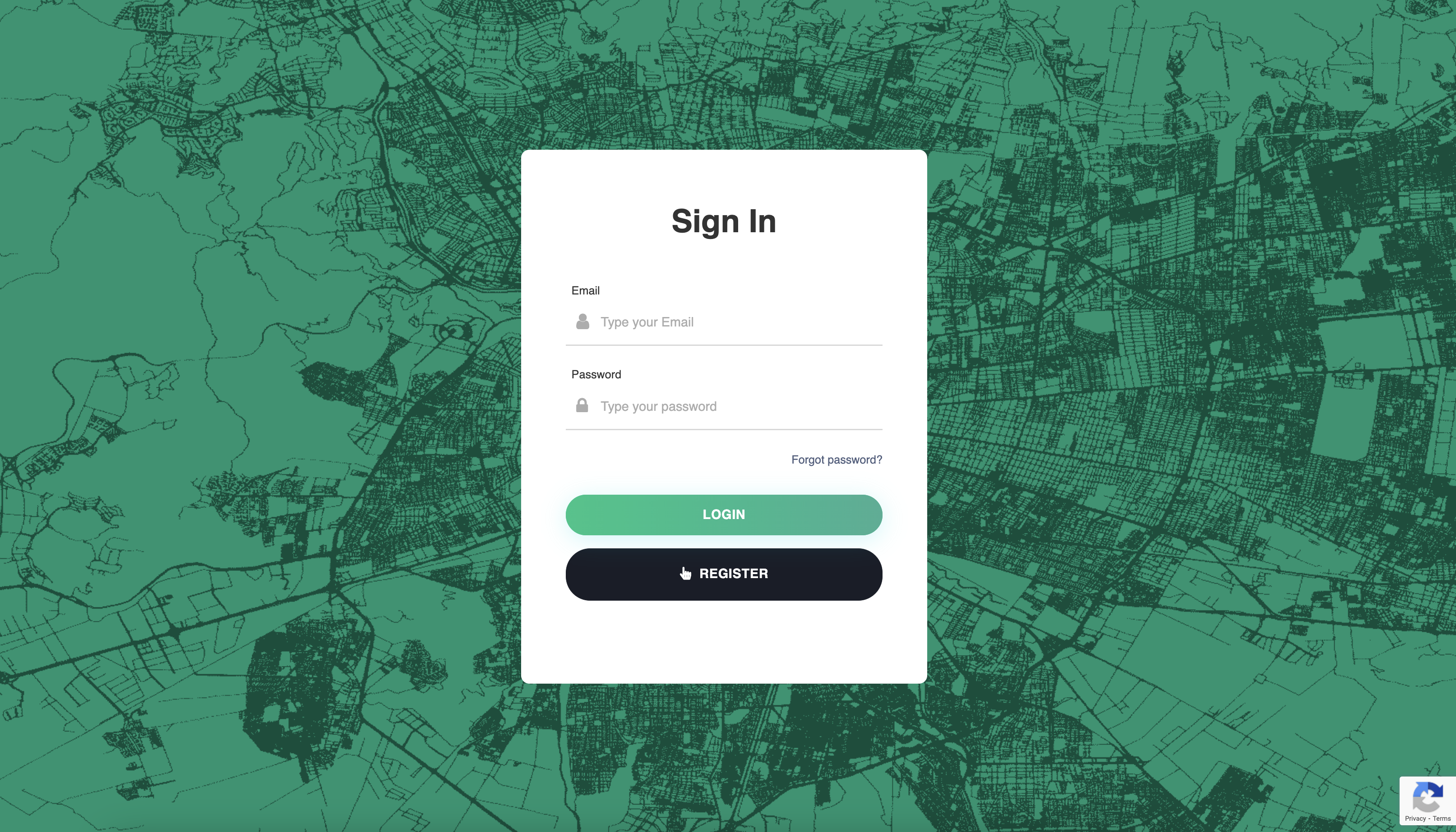
The web version requires email + password. Enter the email used to register your church and the password you set (not an OTP; OTP is only for phone number login on mobile).
4. Log In
Click Log In to access your dashboard. From here you can create maps, manage your team, and view analytics.
Troubleshooting OTP Issues on the Mobile App
If you don’t receive your one‑time password (OTP):
- Check the Number: Include country code (e.g., +1 for USA).
- Resend OTP: Tap Resend OTP if the code doesn’t arrive within a minute.
- Signal Strength: Weak signal can delay SMS delivery—move to better reception.
- Use Email Login: Switch to email + password if OTP remains delayed.
- Contact Support: Email tommy@theswapp.io or call (616) 914‑8392 for assistance.
Admin Access Issues
Seeing a message like “not an admin account exists with this email”?
- Verify Role: The pastor or original registrant may hold the admin account.
- Request Access: Ask an existing admin to grant you privileges via the Team section.
- Support Help: If you should have admin rights, contact us at tommy@theswapp.io or (616) 914‑8392.
Need More Help?
We’re here to make logging in seamless. Reach out anytime to tommy@theswapp.io or call (616) 914‑8392 for personalized help. Happy soulwinning!